
Start on the dashboard
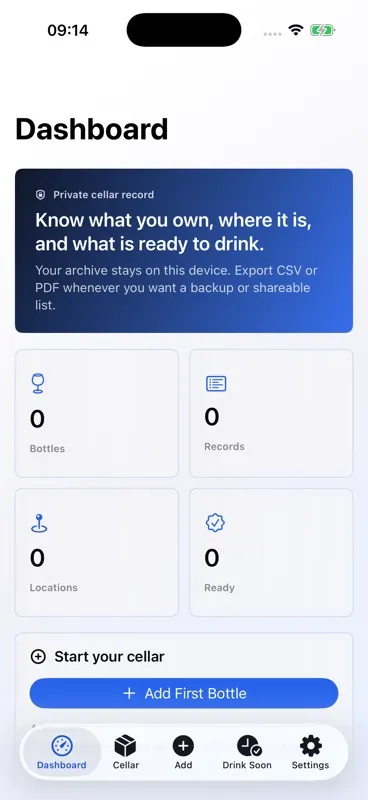
Open CellarKeep to review bottle totals, record counts, storage locations and bottles that are ready or approaching their drink window. The dashboard is the quickest way to start a cellar and return to the main workflows.
Add a bottle
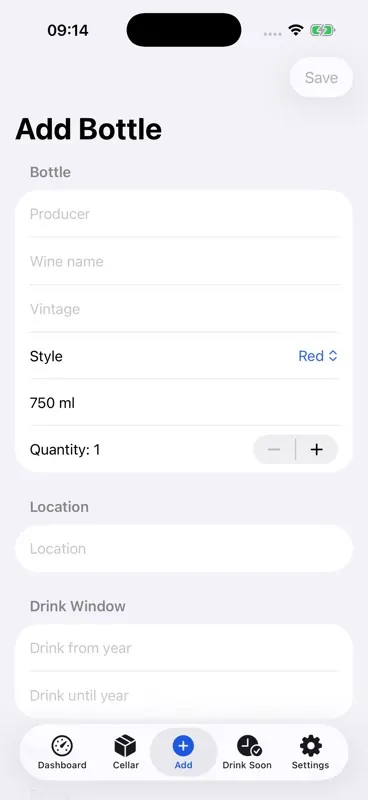
Open Add Bottle and enter a producer or wine name, quantity and storage location. Optional fields include vintage, style, region, country, bottle size, drink window, notes, tags and a bottle photo.
Use storage locations
Create practical locations such as cellar, rack, shelf, bin, fridge or case. Locations help you retrieve bottles later and keep exports useful outside the app.
Review the cellar
Open Cellar to search by producer, wine name, vintage, region, notes, tags or location. Use readiness filters to focus on ready, upcoming, holding, past-window or unset bottles.
Track lifecycle changes
Open a bottle detail screen to duplicate a record, move it to another location, archive it, or record bottles as consumed, gifted or sold. CellarKeep keeps a local activity history for the bottle record.
Plan what to open
Open Drink Soon to see active bottles with ready, upcoming or past drink windows. Add drink-from and drink-until years to make this view more useful.
Export and import
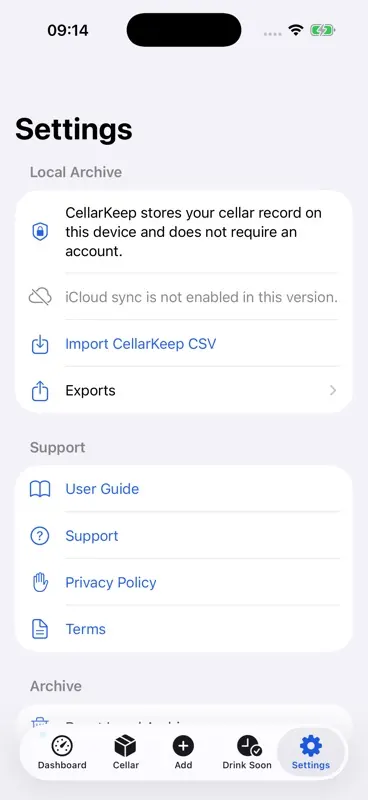
Open Settings and then Exports to generate a local CSV or PDF. Use the system share sheet to save, print or send the exported file using destinations available on your device. CellarKeep can also import its own exported/template CSV format.
Use the iPad target
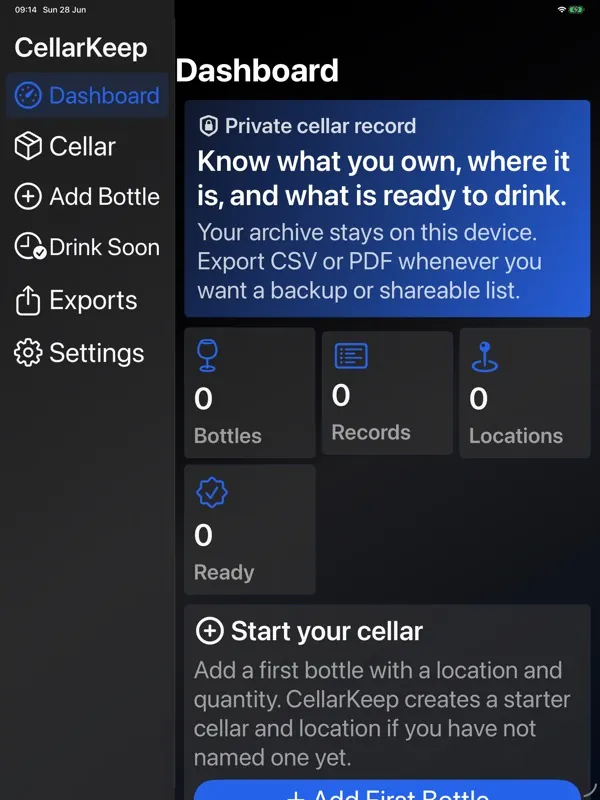
The CellarKeep iPad target uses a persistent split layout with the main sections in a sidebar and the selected workflow in the detail area.
Understand privacy
CellarKeep stores the cellar archive locally on your device in this version. It does not require a RGT Software Ltd account, does not use a hosted wine database, and does not include social, marketplace or live value-tracking features.
Get support
For help, visit CellarKeep Support or email support@RGTSoftware.com. Include your device model, iOS or iPadOS version, app version, and a short description of the issue.