
Download Detail Ledger from the App Store, then open Today to create or continue a vehicle, estimate or detailing job.
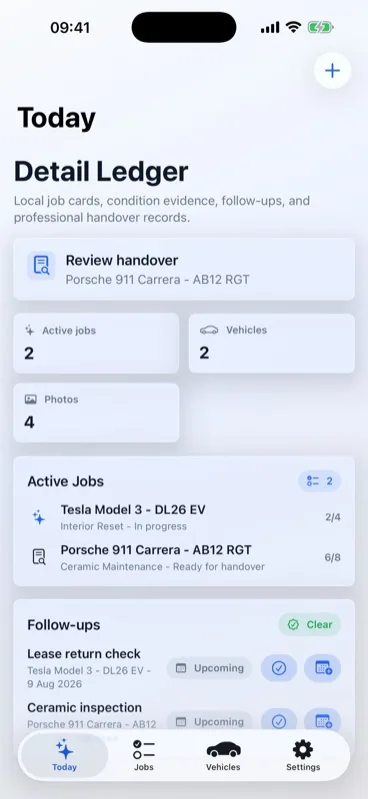
Start from Today
Open Detail Ledger to review active drafts, jobs, vehicle count, saved photo count and follow-up status. Use Continue Job, Start Job or the add button to create a vehicle record, detailing job or estimate.
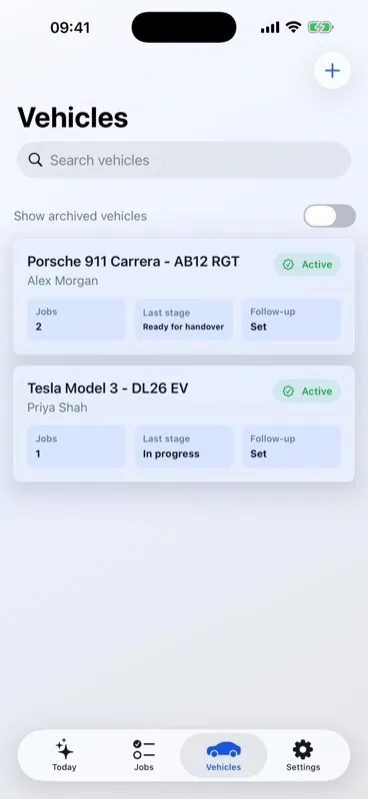
Create vehicle records
Add a vehicle with a label, registration, optional VIN, customer details and notes. Detail Ledger uses vehicle records to connect repeat work, service history, estimates and follow-up checks, and warns when a new local vehicle may duplicate an existing one.
Create estimates
Create an estimate from a vehicle record when you want to record package scope, line items, discounts, tax, deposit paid and balance due before starting work. Accepted estimates can be converted into a draft job with the scope and checklist carried across.
Create a detailing job
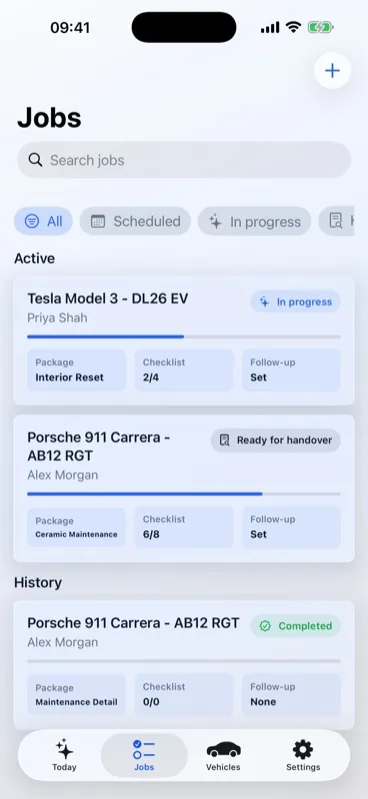
Choose a vehicle, select a service package, confirm the scheduled date and record arrival notes, agreed scope, products used, care instructions, sign-off name and follow-up details where useful. Starting a job creates a saved draft first, so you can leave and continue it from Today.
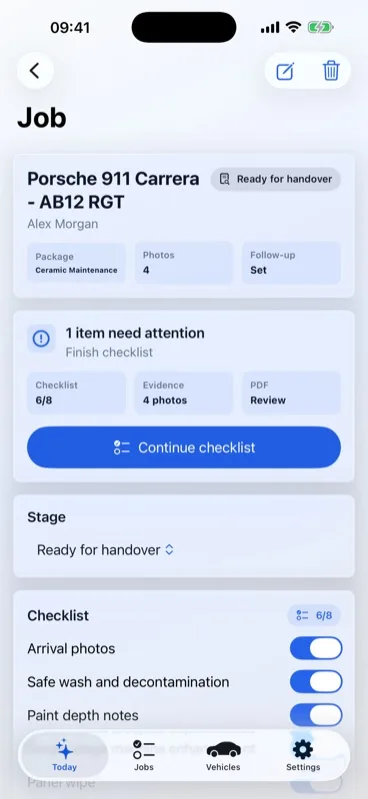
Work the checklist
Open a job to update its stage and mark checklist items as the work progresses. Checklist progress is included in the job record and in generated handover PDFs.
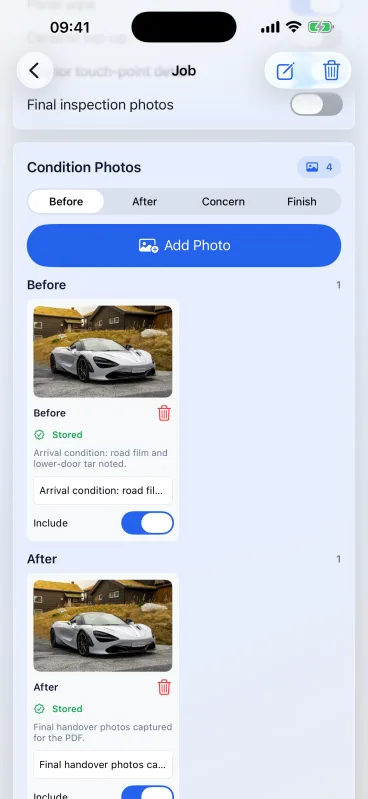
Add condition evidence
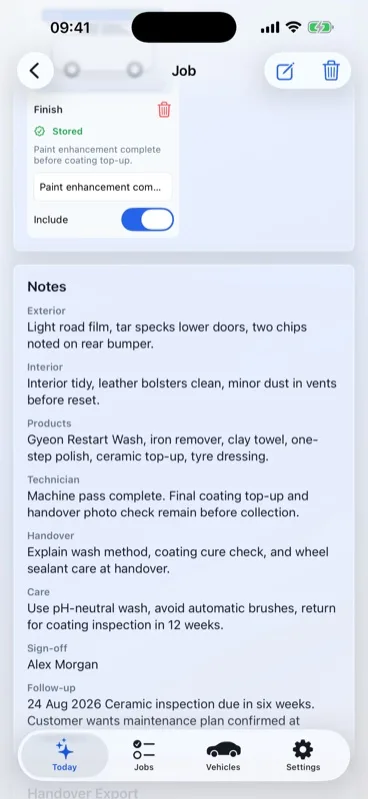
Use before, concern, finish and after photo categories when images make the handover clearer. Photo tiles show import status, captions and whether the image is included in the handover PDF.
Preview, export and back up
Use Preview PDF to generate a local handover PDF with the vehicle, job scope, estimate summary, condition notes, checklist progress, care instructions, sign-off state, optional business details and selected photos. Use Share PDF to save, print, send or back up the file through destinations available on your device.
Open Settings to export a JSON backup, import a previous Detail Ledger backup after reviewing its contents, or delete all local app records from this device after confirmation.
Set business details
Open Settings to add an optional business name, address, email, phone number and logo. These details are stored locally by default and included in PDFs where provided.
Understand Detail Ledger Pro
The starter tier supports the core local workflow with limits on new active jobs, condition photos per job and custom package editing. Existing records, completed history, PDF preview, handover sharing and backup export remain available.
Get support
For help, visit Detail Ledger Support or email support@RGTSoftware.com. Include your device model, iOS version, app version, and a short description of the issue.