
Start on the dashboard
Open TradeCalc Studio to review the dashboard, plan status, quick calculators, saved jobs, and template shortcuts. The dashboard is the quickest way to return to recent work before starting a new site calculation.
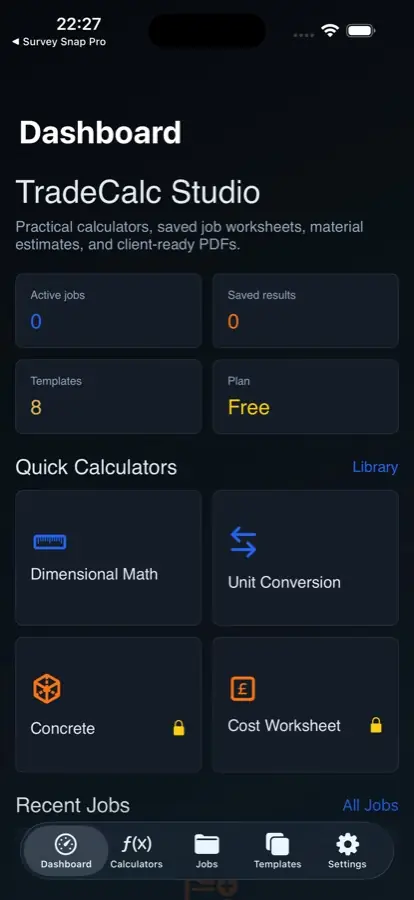
Choose metric or imperial calculators
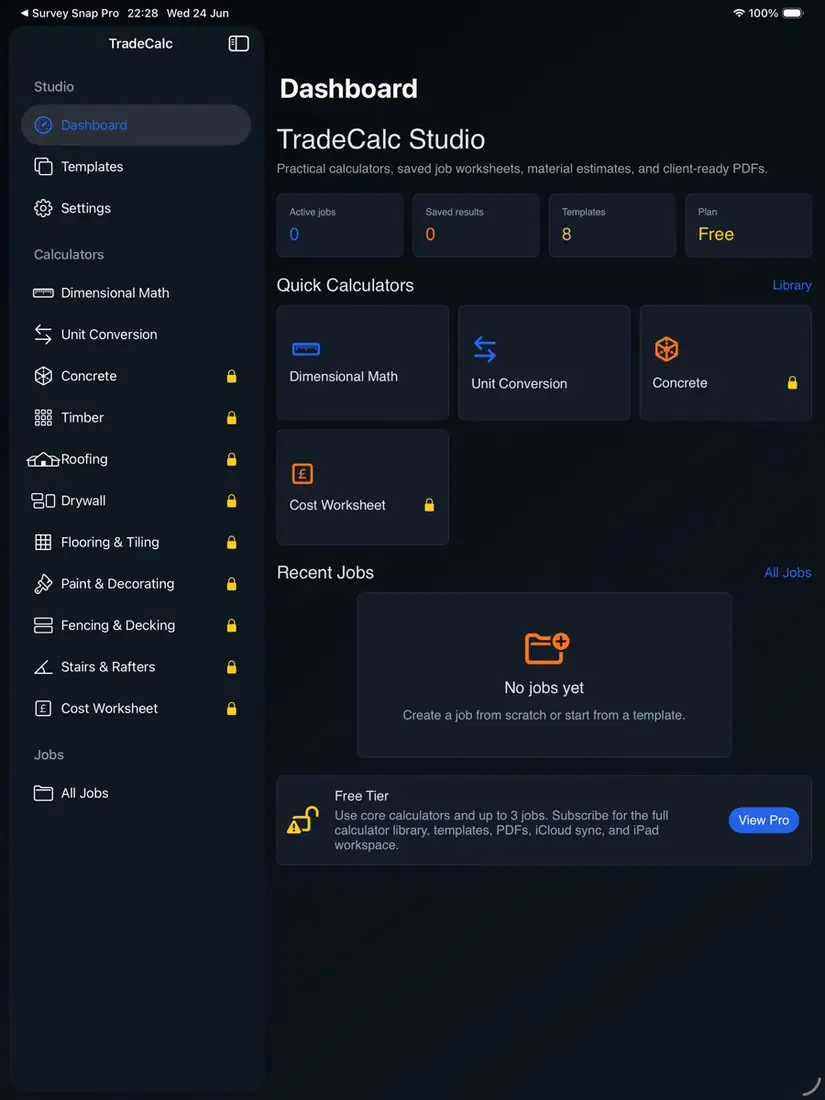
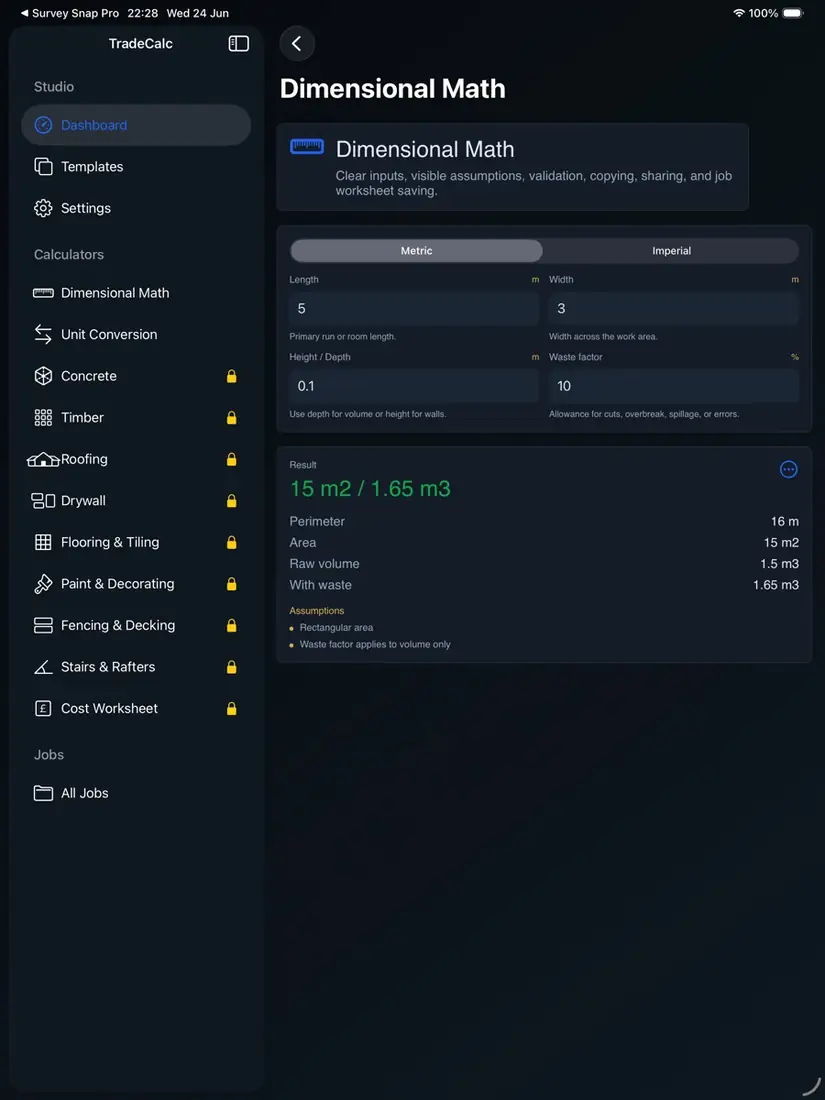
Open Calculators and choose a calculator for dimensional math, unit conversion, concrete, timber, roofing, drywall, tiling, paint, fencing, decking, stairs, rafters, or job costing. Free calculators remain available without payment, while Pro calculators are clearly marked before opening.
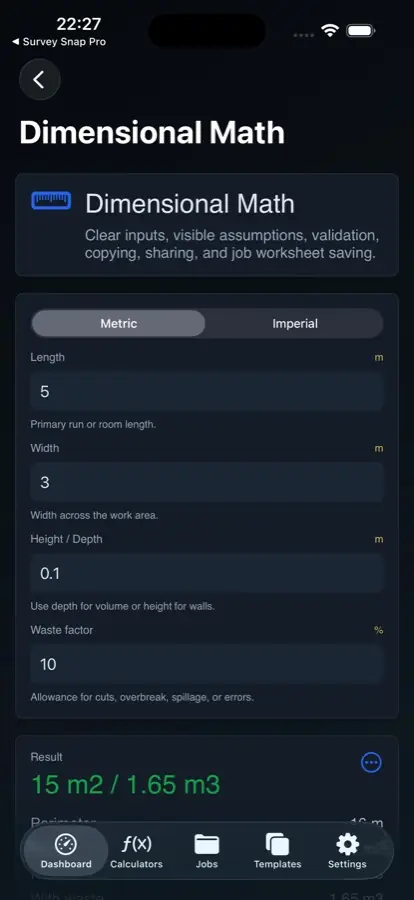
Save results to a job worksheet
Use Save to Job after running a calculator to keep the result with a worksheet. Free users can keep up to three active jobs. TradeCalc Studio Pro unlocks unlimited jobs, the full calculator library, templates, PDF export, optional private iCloud sync, cost worksheets, and the iPad workspace.
Build job worksheets
Open Jobs to create, search, edit, archive, duplicate, or delete worksheets. Add job details, measurements, saved calculator results, cost rows, checklist items, and notes so the working record is ready for export or later checking.
Use templates for repeat work
Open Templates to start from common job worksheets such as concrete, fencing, decorating, drywall, stud walls, decking, roofing, and tiling. Pro users can also save custom templates from existing jobs for repeatable site workflows.
Export and share PDFs
Open a job and choose Export PDF to create a client-ready worksheet summary. The preview includes job details, measurements, saved calculator results, cost rows, checklist items, notes, and TradeCalc branding. Use the system share sheet to save, print, email, or send the PDF through destinations available on your device.
Set company branding and defaults
Open Settings to manage TradeCalc Studio Pro, restore purchases, add company details and an optional logo for PDF exports, choose metric or imperial defaults, set VAT or sales tax, choose rounding preferences, review iCloud sync, and open the user guide, support, privacy policy, and terms links.
Understand calculations and privacy
TradeCalc Studio is an estimating and worksheet tool. Check measurements, supplier specifications, site conditions, local rules, and professional requirements before relying on outputs for quotes, ordering, safety, or compliance. The app stores jobs locally by default. Optional sync uses the user's private Apple iCloud account; RGT Software Ltd does not operate a TradeCalc cloud account service.
Get support
For help, visit TradeCalc Studio Support or email support@RGTSoftware.com. Include your device model, iOS or iPadOS version, app version, calculator name, units selected, input values, and expected result where relevant.